
To more accurately predict weather changes, you can access rain sensors. Our devices support all normally closed rain sensors, both wired and wireless. This article will teach you how to access rain sensors.
What is a rain sensor?
There are two types of rain sensors, normally open and normally closed. Our devices support normally closed sensors only for the time being (Don't worry, 90% of rain sensors on the market are normally closed-type rain sensors). It is a device that communicates with your sprinkler controller regarding the amount of rainfall. If enough rainfall falls, the sensor lets the controller know to skip the next cycle without running.
Smart Weather Genius or rain sensor
There is no conflict between the operation of the Smart Weather Genius and the rain sensor, the rain sensor can be used as a supplement. The rain sensor is useful as an "insurance policy" against inaccurate data from local weather stations. Avoid over-watering.
How to connect the rain sensor to the controller?
1. Switch off the power to the controller
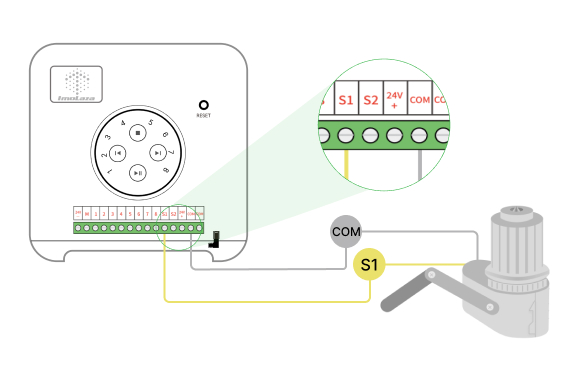
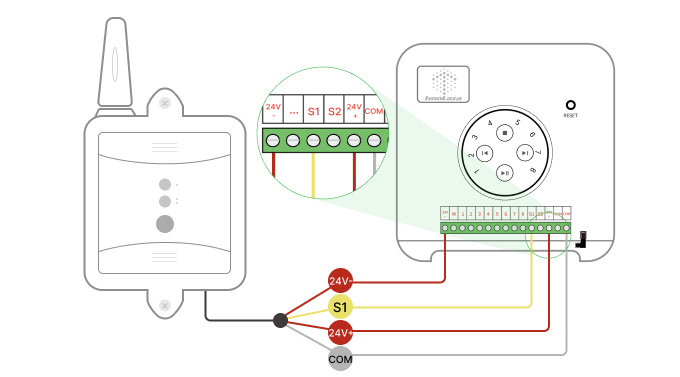
2. Connect the sensor terminals correctly
Wired sensor wiring
Wireless sensor wiring
3. Reconnect the power to the controller
4. Find the "Sensor" tab in the "Controller Settings" of the app and open the corresponding sensor port
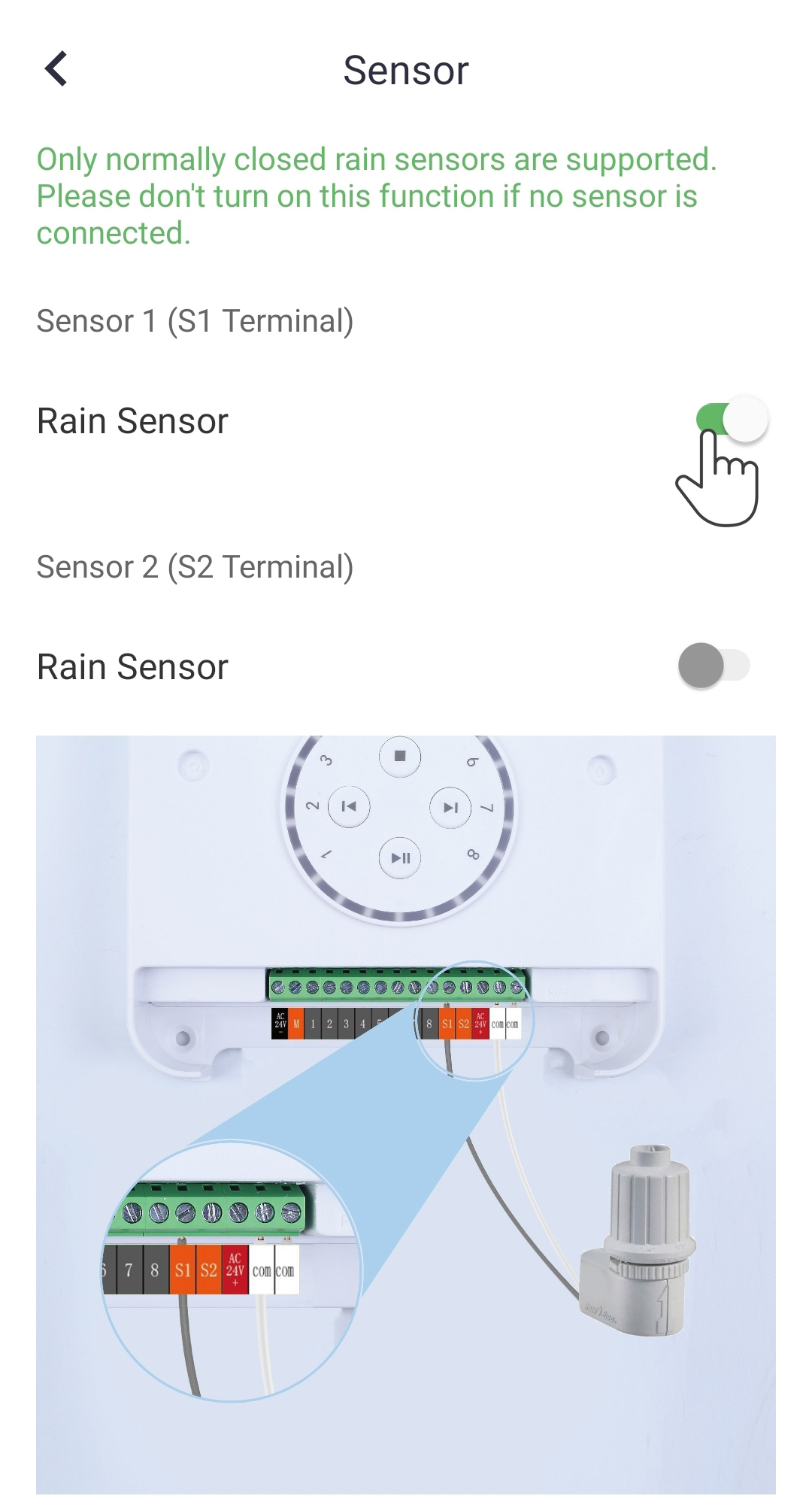
If you are still not sure how to wire the sensor, please tell us the make and model of your sensor and we will guide you through the installation.
Note: Be sure to enable the switch in the App, otherwise the controller remains in an unenabled state.
Still need help?
In case the above method doesn’t work for you, please contact our technical support team directly using the contact information below. We will respond to you by email within 12h after your message reaches us.
Email: Support@imolaza.com